How to Fix Wix Payment Problems: Verification, Declined Payments and Payouts
Key takeaways
- Most Wix payment problems come from three places: an unverified Wix Payments account, the wrong premium plan, or payment settings that do not match your business.
- Start in Settings, then Accept payments. An "Action Needed" label and a "Fix Issue" button tell you exactly what Wix needs.
- Verification can take up to 7 business days, and you must finish account setup within 30 days of your first payment or your site stops accepting payments.
- Most rejected documents are blurry, cropped, out of date or use a screenshot. Upload clear colour copies whose details match your Wix Payments account.
Wix payment problems can stop a business taking orders overnight. Some Wix website owners find that payments fail, customers' cards are declined, payouts are put on hold or Wix asks for account verification before money can reach their bank. Each of these issues gets in the way of processing customer orders.
The good news is that most of them can be solved by checking your payment settings and sending Wix the right documents. We support Wix websites for UK businesses, and these are the checks we work through when a client's site stops taking payments. The screenshots below come from a real Wix Payments account that needed attention, with the business details hidden.
Quick Diagnosis: Which Wix Payment Problem Do You Have?
| What you see | Most likely cause | Where to fix it |
| "Action Needed" next to Wix Payments | Wix needs more information or documents to verify your account | Settings, Accept payments, then Fix Issue |
| "Not accepting payments" with an Upgrade link | Your plan does not include online payments | Upgrade to a premium plan that accepts payments |
| A customer's card was declined | The customer's bank, a payment limit, an authentication check or a currency problem | Sales, Payments & Finances, All Payments, then open the declined payment |
| A payout is on hold | Something is blocking the payout, such as bank details or an unverified account | Open the payout in your Wix Payments dashboard |
| A payment method is missing at checkout | The method is not enabled, is not available in your currency or country, or needs a plan upgrade | Settings, Accept payments |
1. Identify the Wix Payment Problem
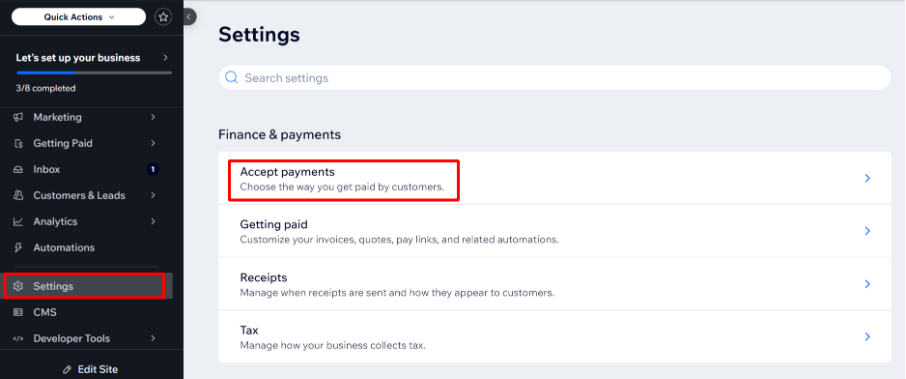
First, log in to your Wix account and open your website's dashboard. Then go to Settings, and under Finance & payments, select Accept payments. This page lists every payment provider connected to your site and shows its status.
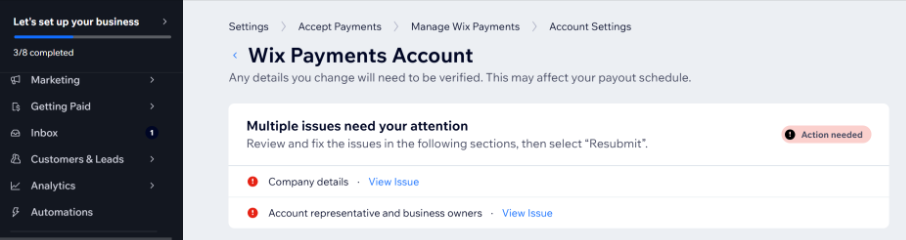
On the Accept Payments page, Wix shows any issue with your account at the top of the Wix Payments section. In the example below, Wix Payments is marked "Action Needed", with the message "There's an issue verifying your info". Notice that the card, Apple Pay and Google Pay rows also say "Not accepting payments" with an Upgrade link, which means this site's plan does not yet include online payments. Two separate problems can show up on the same screen.
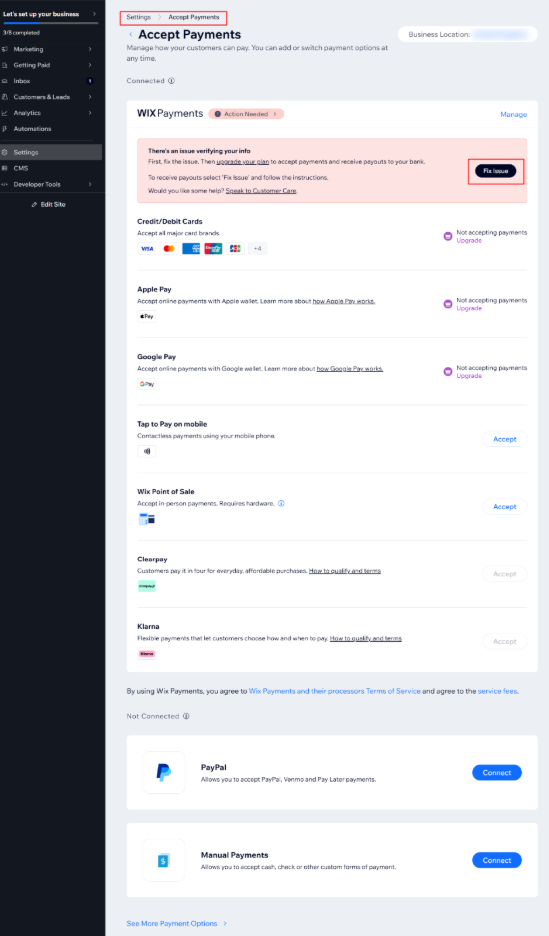
Select the Fix Issue button in the warning to see exactly what Wix needs. In this case, Wix Payments flagged two sections, company details and the account representative and business owners, and asked for them to be reviewed and resubmitted.
Common Wix payment problems include:
- Customers being unable to complete payments.
- Credit or debit card transactions being declined.
- A Wix Payments account that has not been verified yet.
- Payouts being placed on hold.
- Payment methods not showing up at checkout.
How to See Why a Payment Was Declined
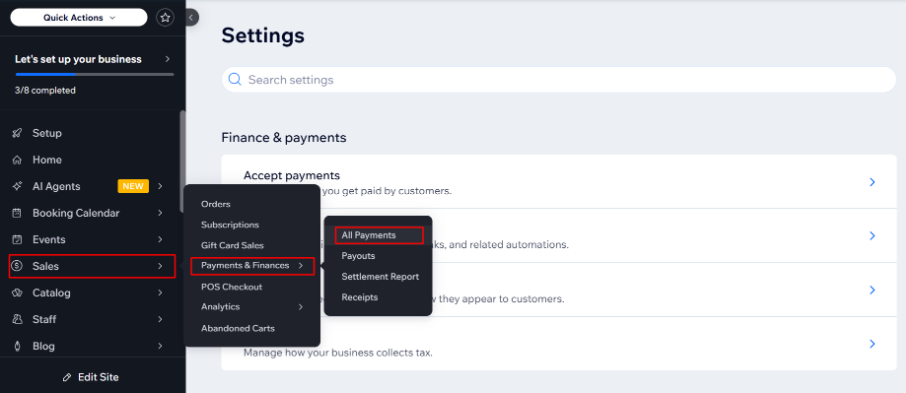
To find out why a customer's payment was declined, go to Sales, then Payments & Finances, then All Payments. Select the declined transaction and scroll down to the decline reason. Wix's list of decline reasons explains each one and what you or your customer can do next.
Declines usually come from the customer's bank, a spending or payment limit, a currency the card does not support, or a fraud check. UK and European cards may also need Strong Customer Authentication, where the bank asks the customer to approve the payment in their banking app. If the customer does not complete that step, the payment fails. In most of these cases the fix sits with the customer's bank, not with your Wix site, so ask the customer to contact their bank or try another card.
2. Check Your Wix Payment Settings
Before you submit any documents, make sure your payment set-up is correct. Check that:
- Your website is on a premium plan that accepts online payments. On Wix's current plans, Light does not include online payments, and Wix recommends Core or higher for businesses that sell online.
- Your website is published and live.
- You have connected an approved payment provider, such as Wix Payments or PayPal.
- The payment methods you want, such as cards, Apple Pay and Google Pay, are switched on.
- Your website's currency matches a currency your payment provider supports.
- Your business location on the Accept Payments page is correct, because it decides which providers and methods you can use.
If everything looks right and payments still fail, contact your payment provider to check for restrictions on your account. Wix's troubleshooting guide for accepting payments covers less common causes.
Keep Customers Paying While You Fix Wix Payments
If Wix Payments needs verifying, you do not have to stop selling while you wait. The Accept Payments page also lets you connect PayPal, and manual payments such as bank transfer, as extra options. Adding a second provider means customers can still pay while your Wix Payments account is being reviewed. Our PayPal integration team can set this up if you need help.
3. Prepare the Correct Wix Payments Verification Documents
Wix Payments can ask for documents to verify your identity, your address, your bank account or your business registration. This is part of the "know your customer" checks every regulated payment provider must carry out. Wix's verification process starts once you accept your first successful payment, and Wix also reviews your website's content against its list of prohibited products and services.
Depending on your type of account, you may need:
- Identity verification: a passport, driving licence or other official photo ID.
- Address verification: a utility bill, bank statement or other accepted proof of address.
- Bank verification: proof that you own the bank account, such as a recent bank statement.
- Business verification: a certificate of incorporation, business registration or tax registration document.
Make sure your personal and business details match the information entered in your Wix Payments account exactly, including the spelling of names and the format of your address.
4. How to Upload Documents to Wix Payments
Follow these steps to submit your documents:
- Log in to your Wix account.
- Open your website's dashboard.
- Go to Settings, then Accept payments.
- Next to Wix Payments, select Manage.
- Find the verification notification or document request.
- Select the requested document type and upload the file.
- Review your information and submit the documents.
If Wix asks you to update your account information, select Edit Account Details, update the relevant fields, select Save and then Resubmit. Wix shows the warning "Any details you change will need to be verified", so changing details can pause payouts until the new information is checked.
5. Avoid Common Wix Payments Document Mistakes
Documents are rejected if they are unclear, incomplete, out of date or do not match your account information. Wix's upload guidelines set out the rules, and these are the ones that catch people out most often:
| Rule | What Wix requires |
| File type | HEIC, JPEG, JPG, PDF or PNG |
| File size | No more than 10 MB. At least 1 KB for a PDF and 100 KB for other formats. |
| Photo ID | In date, in colour, with all four corners and edges visible |
| Two-sided ID | A separate file for each side of a driving licence or ID card |
| Image quality | Not blurry, not overexposed and not a screenshot or a copy from another source |
| Proof of address | Usually dated within the last 3 months, and at least one full page |
| Matching details | Name and address exactly as entered in your Wix Payments account |
Date limits vary by document. Proof of address must usually be dated within the last 3 months, while some business and tax documents can be up to 12 months old. Wix's help pages do not always agree on the exact limit, so always follow the requirement shown in your own Wix Payments dashboard. For proof of a registered business address, see Wix's guide to uploading proof of registered address.
6. Monitor Your Wix Payments Verification Status
According to Wix, verification can take up to 7 business days after you submit your documents. Two deadlines matter:
- The 30-day set-up deadline: if you do not finish setting up your Wix Payments account within 30 days of your first payment, your site will stop accepting payments until you do.
- The 7 business day review: if 7 business days have passed and your details are correct and match your bank account, contact Wix Customer Care.
If your documents are rejected, read the reason Wix gives, correct the problem and submit new documents. Wix explains each account status, and your account must show as Active before payouts can reach your bank.
7. Fix Wix Payouts on Hold
Wix puts a payout on hold when something is blocking it. To see the reason, open the payout in your Wix Payments dashboard, which shows what went wrong and how to fix it. Wix's guide to payouts on hold lists the causes. The most common are:
- Incorrect or out-of-date bank account details.
- An account that is not yet verified, or is not showing as Active.
- Recently changed account details that are waiting to be verified again.
Once the issue is resolved, the held money is added to your next scheduled payout. A reserve is different from a hold: Wix sometimes keeps back part of each payout for a set time, so check which one applies to your account.
How to Prevent Wix Payment Problems
Most Wix payment problems can be avoided with a few habits:
- Complete Wix Payments set-up as soon as you accept your first payment, rather than waiting for a reminder.
- Keep your business, bank and contact details up to date in Wix Payments, and expect a short re-verification whenever you change them.
- Check Settings, then Accept payments once a month, and act on any "Action Needed" label straight away.
- Keep a second payment option, such as PayPal, connected as a backup.
- Renew your premium plan on time. If a renewal fails, Wix can remove premium features, including online payments.
- Place a test order after any change to your plan, currency, checkout or payment settings.
Regular Wix maintenance covers these checks, so payment problems are caught before customers notice them.
Conclusion
Wix payment problems look alarming, but most have a clear cause and a clear fix. Start on the Accept payments page, follow the Fix Issue prompts, make sure your plan and settings support the payments you want, and upload clear documents that match your account. Then allow up to 7 business days for Wix to review them before contacting Wix Customer Care.
FAQs About Wix Payment Problems
Why can I not accept payments on my Wix website?
The most common reasons are a plan that does not include online payments, a Wix Payments account marked "Action Needed", a website that is not published or payment methods that are switched off. Go to Settings, then Accept payments to see which applies.
How long does Wix Payments verification take?
Wix says verification can take up to 7 business days after you submit your documents. You must also finish setting up Wix Payments within 30 days of your first payment, or your site will stop accepting payments.
What documents does Wix Payments need for verification?
Wix may ask for photo ID, proof of address such as a recent utility bill, a bank statement to prove you own the account, and business registration documents. The documents you need depend on your account type and country.
Why were my Wix Payments documents rejected?
Documents are usually rejected because they are blurry, cropped, out of date, screenshots, or show a name or address that does not match your Wix Payments account. Read the reason Wix gives, fix it and upload a new document.
What file types and sizes does Wix Payments accept?
Wix Payments accepts HEIC, JPEG, JPG, PDF and PNG files up to 10 MB. Files must be at least 1 KB for a PDF and 100 KB for other formats.
Why are my Wix payouts on hold?
A payout is put on hold when something is blocking it, such as incorrect bank details or an account that is not yet verified. Open the payout in your Wix Payments dashboard to see the reason. Once it is fixed, the money is added to your next scheduled payout.
How do I see why a customer's payment was declined on Wix?
Go to Sales, then Payments & Finances, then All Payments, and open the declined transaction. Scroll down to see the decline reason. Most declines come from the customer's bank, so the customer may need to contact their bank or use another card.
Which Wix plan do I need to accept online payments?
You need a Wix premium plan that includes online payments. On Wix's current plans, the Light plan does not accept online payments, while Core and higher plans do.
Related Reading
Sources
- Wix Payments: Understanding the Verification Process (Wix Help Center)
- Wix Payments: Guidelines for Uploading Documentation (Wix Help Center)
Need Help with Wix Payments?
If your Wix website has stopped taking payments, or Wix Payments keeps asking for documents, we can help. Our Wix web development team sets up and fixes Wix checkouts, payment providers and online stores, including Wix eCommerce integrations with other business systems. We have built complete platforms on Wix, such as the TACTYC membership platform.
If you need help solving Wix payment problems,
Get in touch todayAbout the Author
Rehan Ahmed is the CEO of Smart Web Agency, which builds, maintains and supports Wix, WordPress, Shopify and custom websites for businesses in London and across the UK. Connect with Rehan on LinkedIn.